Overview
Password reset is used when the current password is unknown or no longer works. The reset form verifies control of the registered phone number before accepting a new password, so the phone and verification code must remain private.
Before you start
- Use the same phone number linked to the account.
- Close unknown screen-sharing or remote-control apps.
- Choose a new password that has not been used before.
Step-by-step instructions
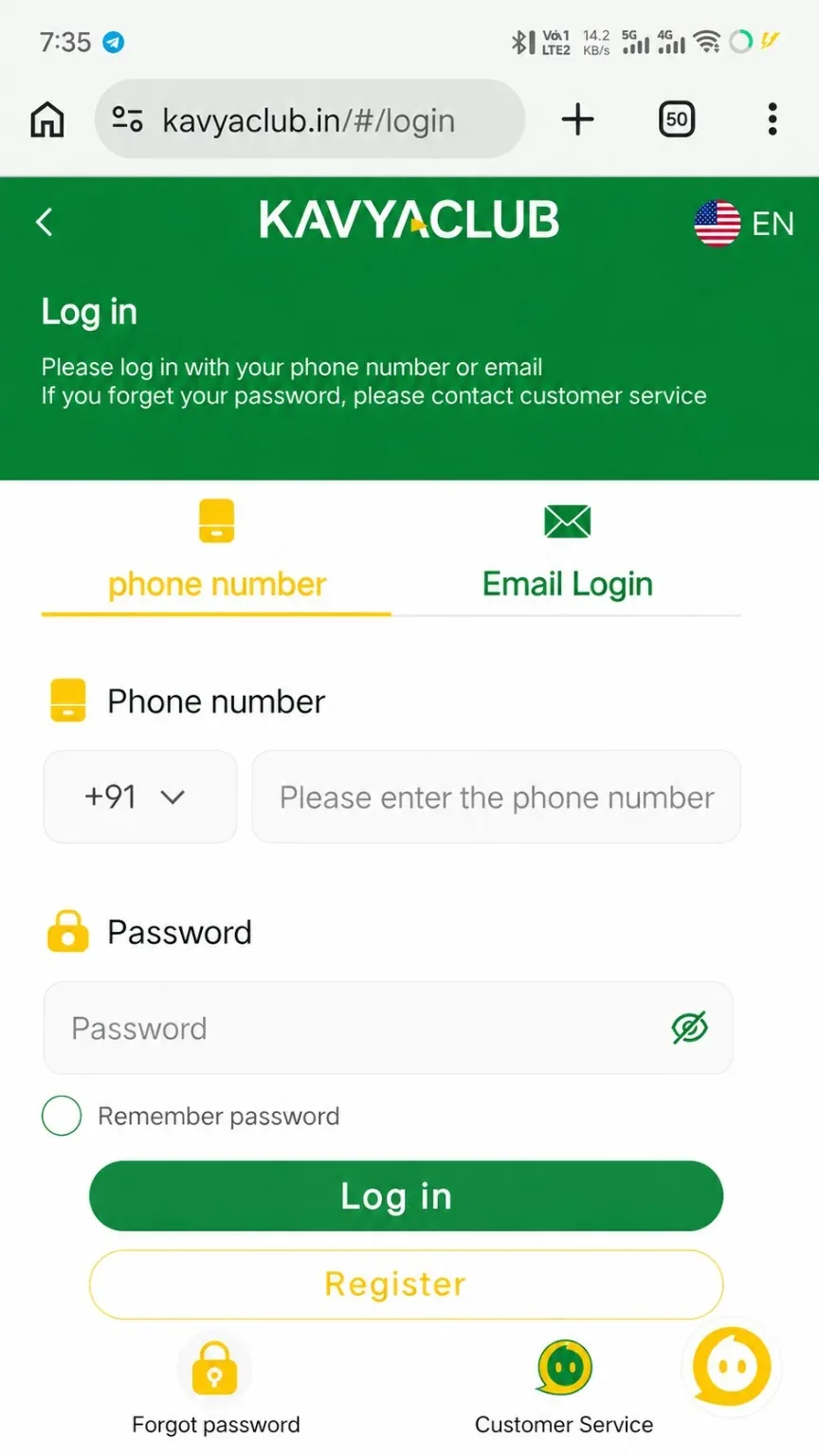
- Open Login and select Forgot password.
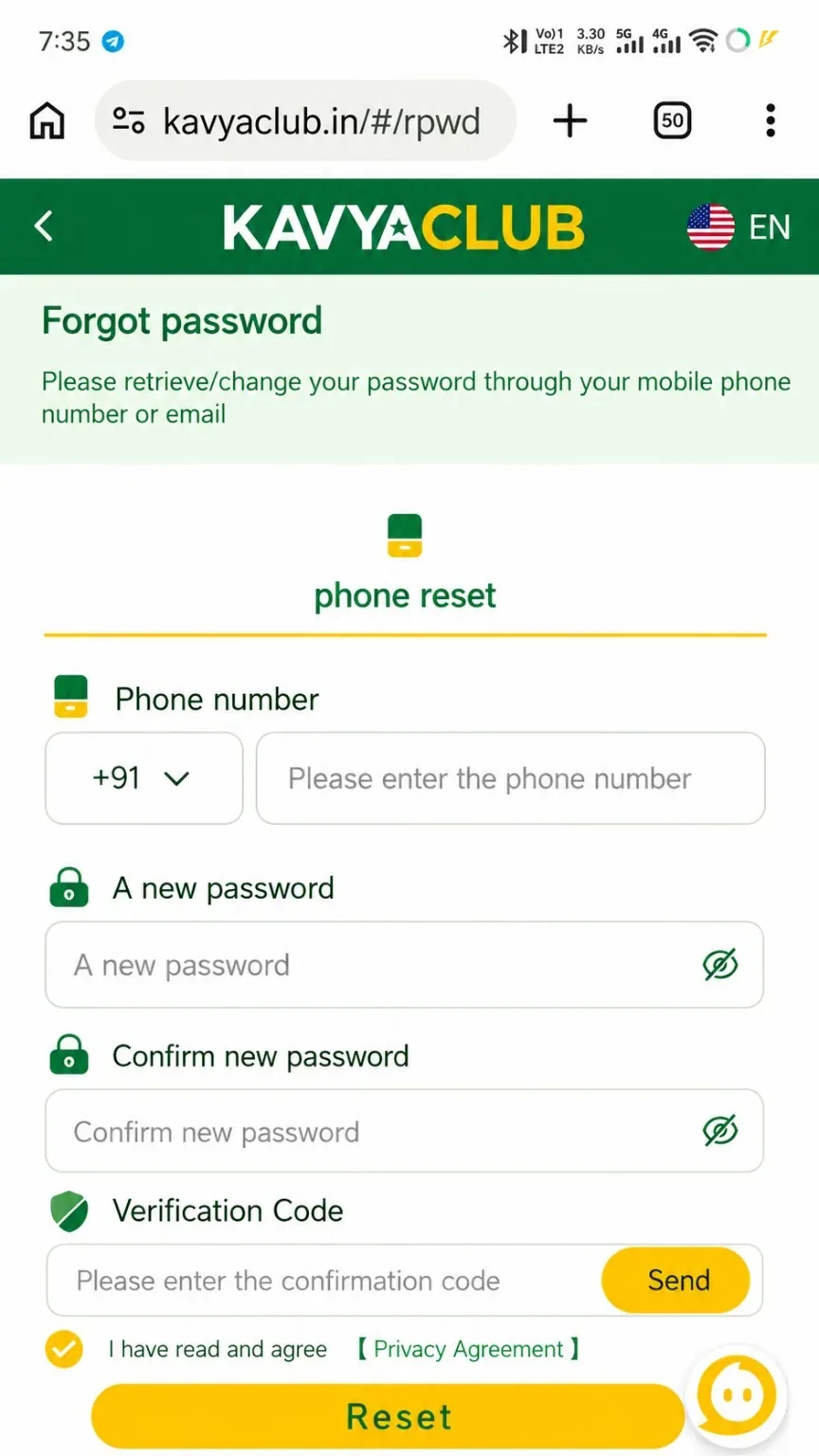
- Enter the registered mobile number and request a verification code.
- Type the received code before the timer expires.
- Enter a new password and repeat it in Confirm new password.
- Submit the form and wait for the success message.
- Return to Login and confirm that the new password works.
Common problems and solutions
| Problem | What to check |
|---|---|
| Code expired | Request a fresh code after the resend timer ends. |
| New passwords do not match | Clear both fields and type the same value carefully. |
| Registered number unavailable | Contact verified support and be prepared to complete ownership checks. |
| Reset succeeds but login fails | Make sure the browser is not filling the old saved password. |
Final checks
- The new password works on the official login page.
- Old saved passwords are removed from shared devices.
- The reset code was not forwarded to anyone.
Safety notes
Important: A person asking for your reset code, OTP or new password may be attempting to take over the account.
Related help
Use the related-guide cards below to continue with the next account, payment, game or safety step.
Frequently asked questions
How long is a reset code valid?
Use it promptly because verification codes normally expire after a short period.
Can support tell me my old password?
No. A secure system stores a protected password hash, so recovery should create a new password.
Why does the old password still appear?
Your browser or password manager may be auto-filling it. Delete the saved value and enter the new password.