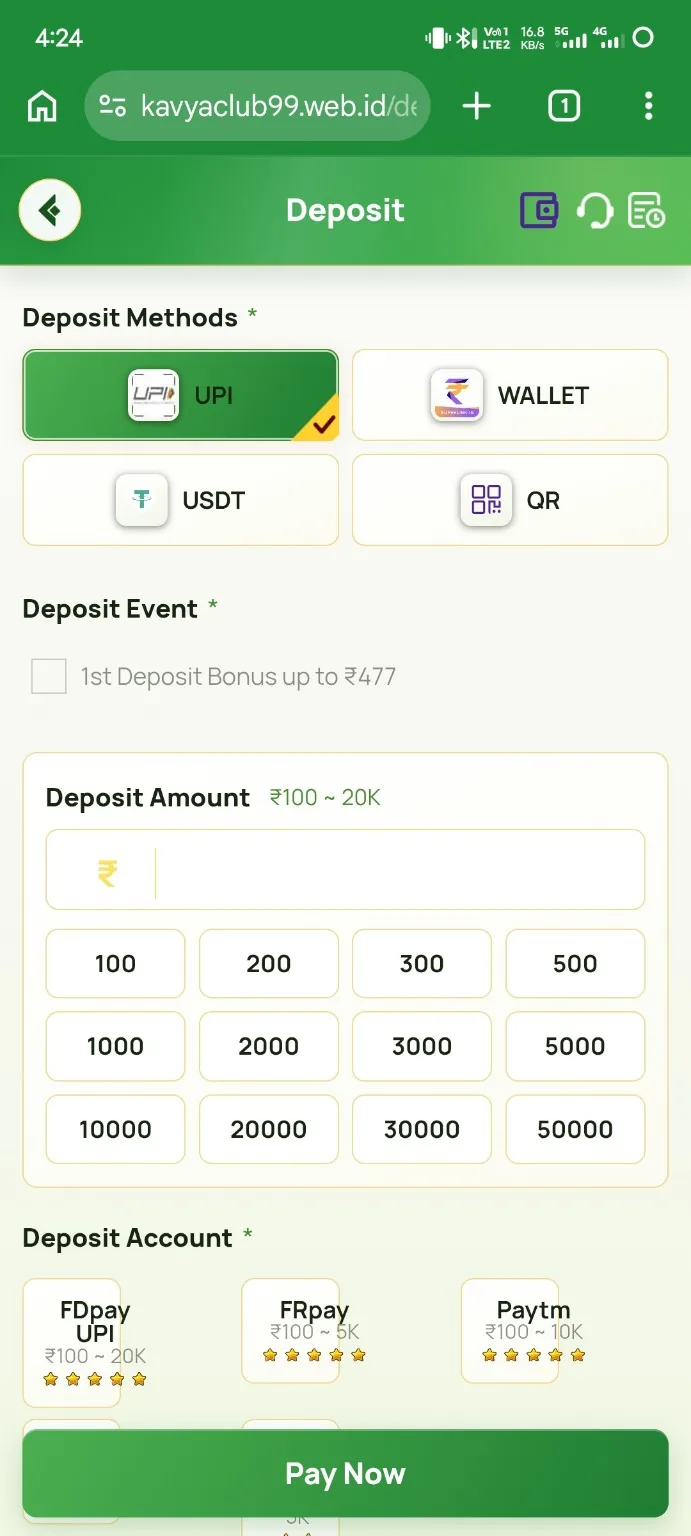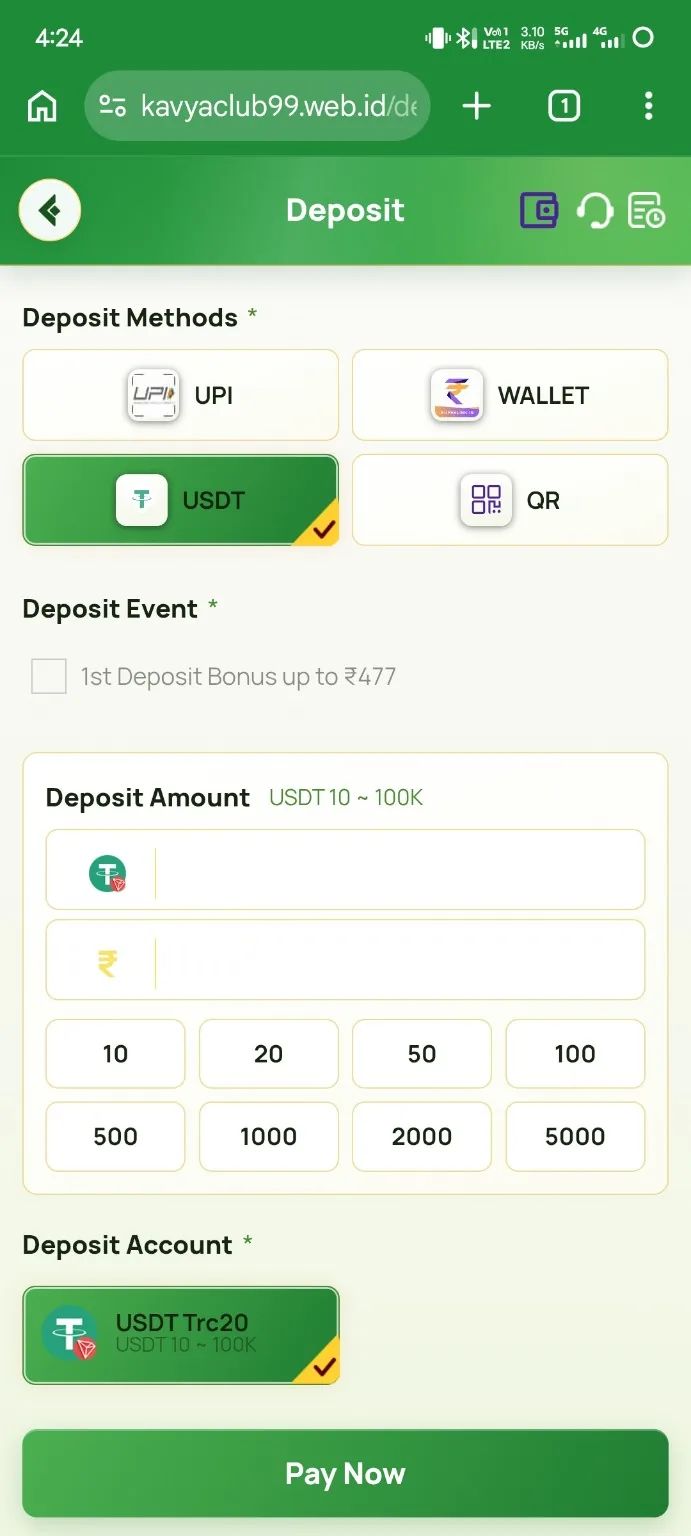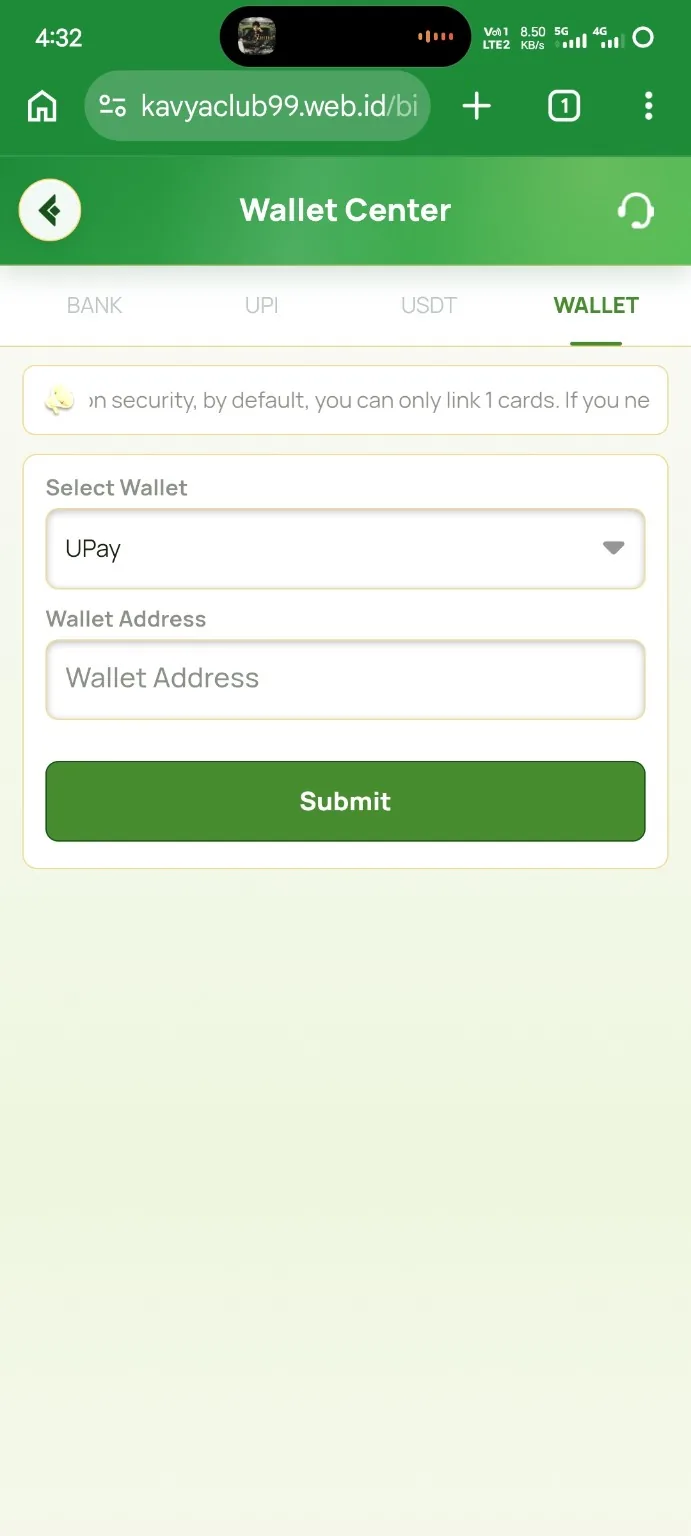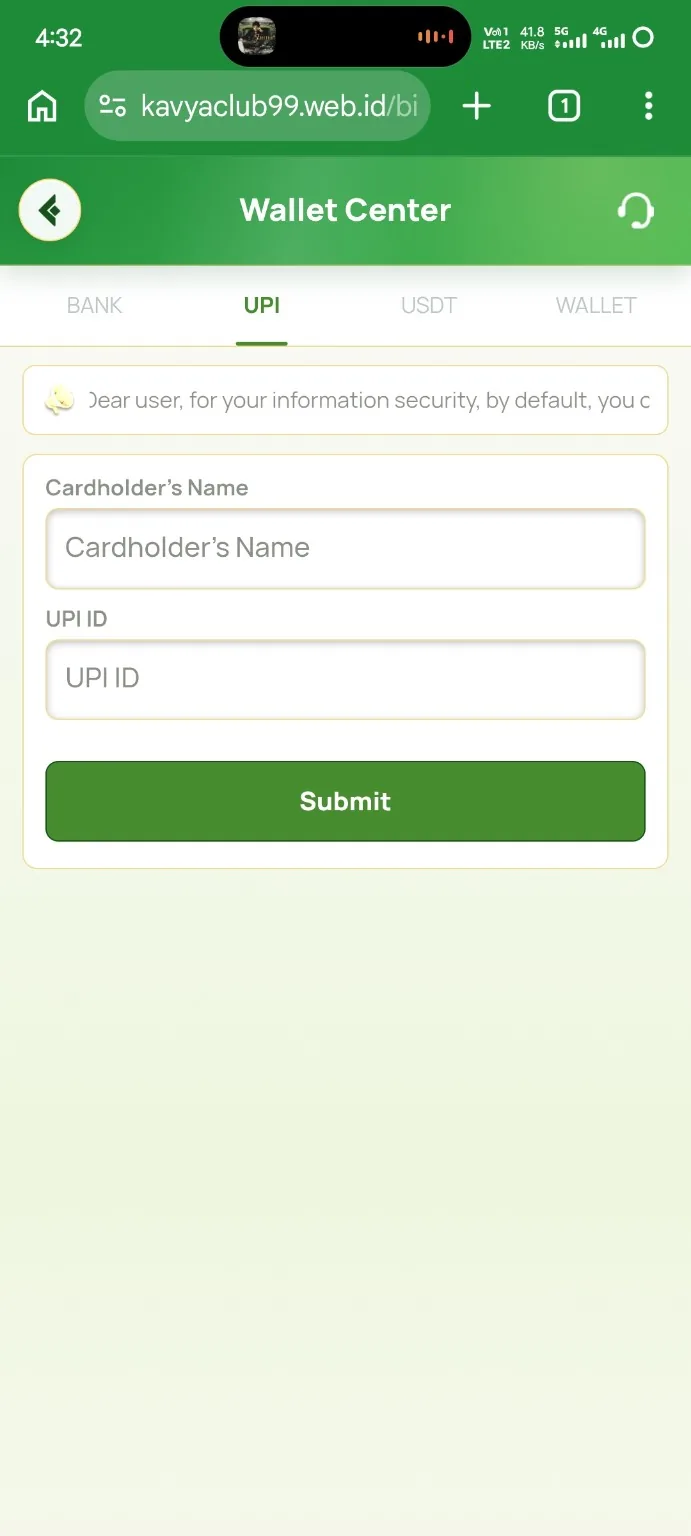
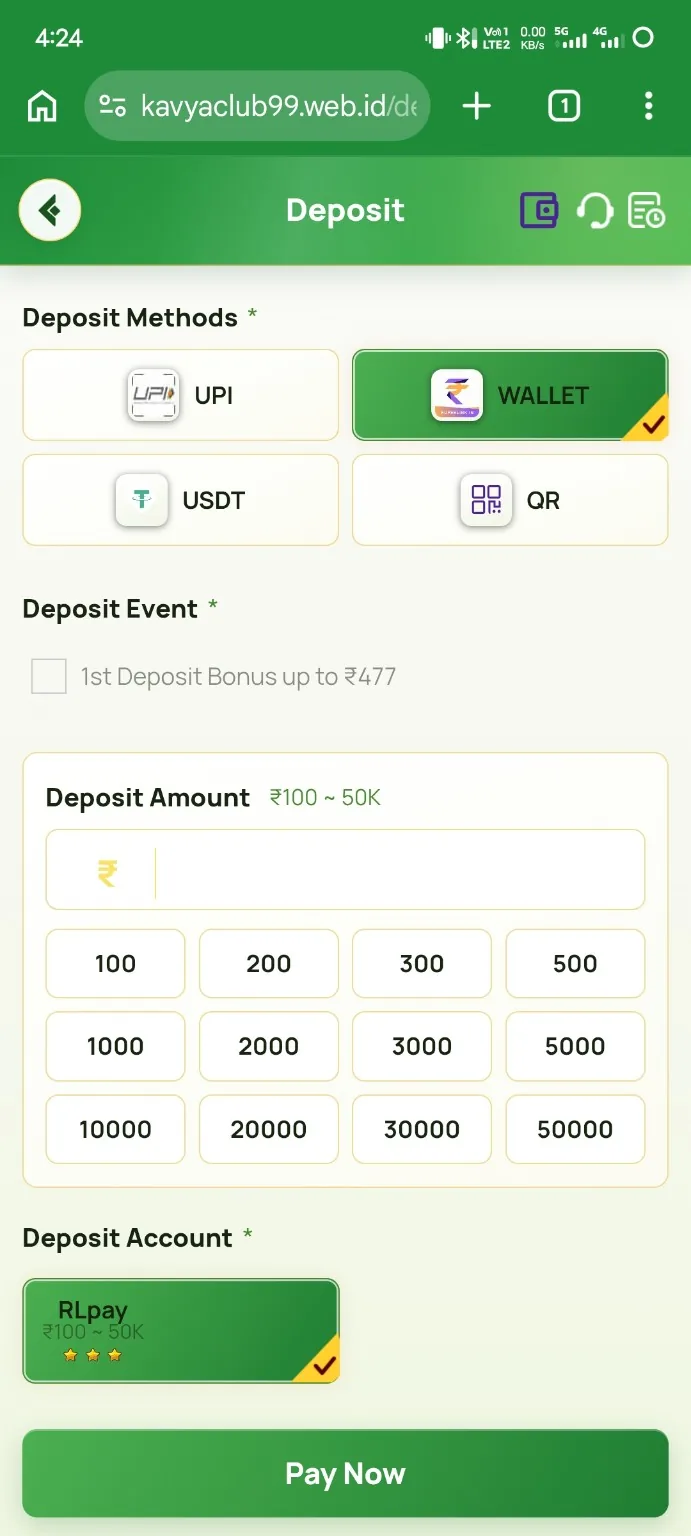
What the RPL deposit screen shows
The Kavyaclub deposit page shown in this guide includes a Wallet payment method. After Wallet is selected, the page displays an amount field, preset INR values and a wallet-based deposit account. In the supplied screen the account is labelled RPLpay. The label, limits and payment provider can change, so use the live options shown inside your own account rather than copying values from a guide image.
How to make an RPL wallet deposit
- Open the Kavyaclub Deposit page from your logged-in account.
- Select Wallet under Deposit Methods and confirm that the intended wallet option is highlighted.
- Enter or choose an amount that is within the minimum and maximum shown on your live deposit screen.
- Check the selected Deposit Account and the amount once more, then tap Pay Now.
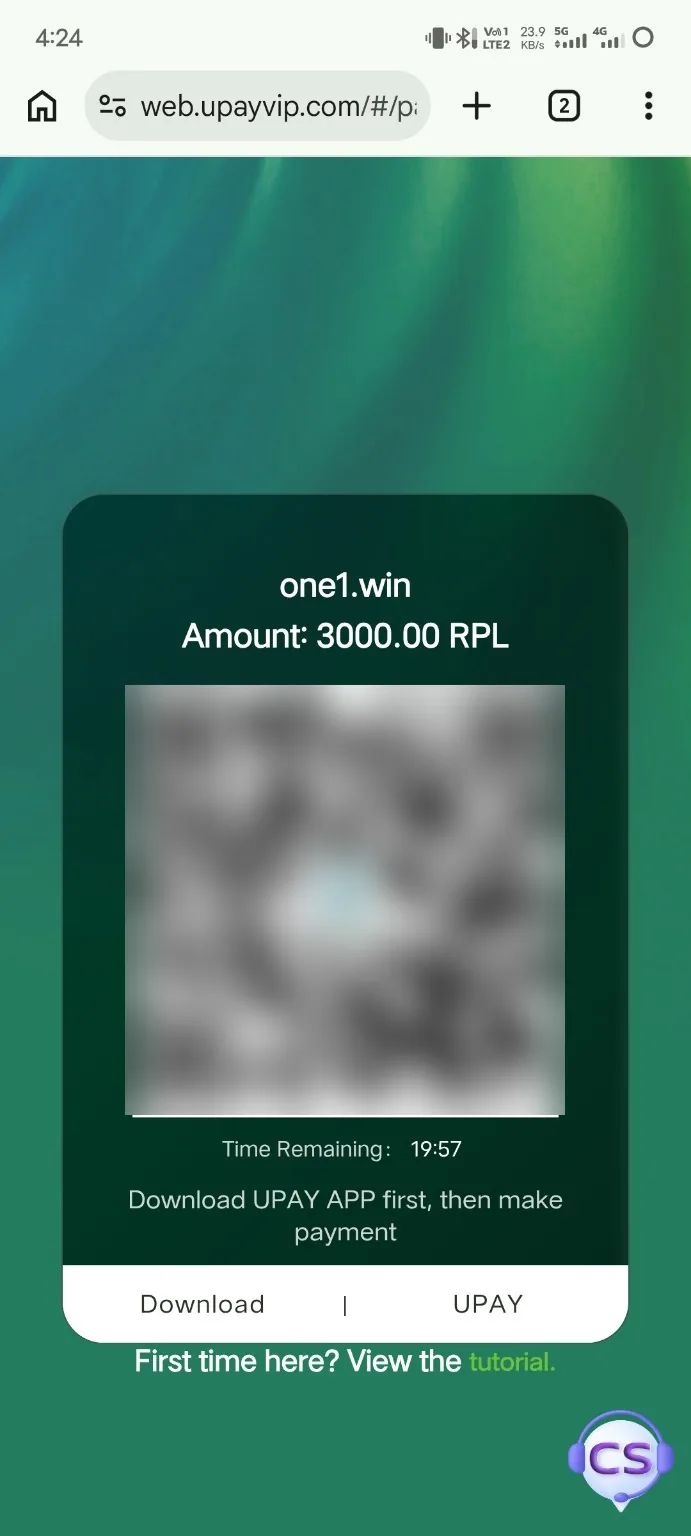
- The payment provider page can show an RPL amount, a time limit and a QR/payment option. Confirm that the amount shown by the payment page matches the order you just created.
- Use your own current UPay/RPL wallet flow to complete the payment. Do not scan or reuse a QR code from an old screenshot, forwarded message or previous order.
- Return to Kavyaclub after payment and check the balance or deposit history. Keep the current order details until the transaction is credited.
Checks before paying
- Use only the payment page opened from the current Kavyaclub deposit order.
- Verify the amount and provider on the live screen before confirming anything.
- Do not send money to a QR code or wallet detail copied from this guide, social media or another member.
- If the timer expires, return to Deposit and create a fresh order instead of reusing the expired details.
If the deposit does not appear
First check whether the payment completed in the wallet or payment provider and whether the Kavyaclub order is still pending. Avoid creating several payments for the same order. If the payment is confirmed but the balance does not update after a reasonable processing period, use the verified support option and provide only the transaction/order information requested for tracing. Never share a password, OTP, payment PIN or recovery phrase.
Related payment guides
For other methods, see the INR deposit guide, the USDT deposit guide and the UPay wallet setup guide.
Frequently asked questions
Can I reuse the QR code shown in this guide?
No. Payment QR codes and order details can be specific to one order and can expire. Create a current deposit order in your own account and use only the live details shown there.
What should I do if the payment timer expires?
Return to the Kavyaclub Deposit page and create a fresh order. Do not assume an expired QR code or payment detail is still valid.
Why is my RPL deposit still pending?
Check the current order status and the payment provider first. If the payment is confirmed but crediting remains pending, use verified support with the relevant order or transaction details.